

At the end of the previous note, I (Alex) promised that the next one would be about hands: the Morphic objects that stand in for each user’s cursor, and the mechanism we built to stream fast-changing state, like the position of a morph being dragged, to other users without piling operations into the Automerge document. That note is still coming. But Dan pointed out, correctly, that hands are only one piece of a Morphic world we’ve been referring to throughout this series (morphs, halos, the world, stepping) without ever properly introducing. So we interrupt our regularly scheduled programming to fill in some missing context.
What follows is Dan’s tour of the Morphic kernel at the heart of Livelymerge: the kernel whose objects live in the Automerge document described in the object model, local state, and performance notes. If you’ve ever wondered what all those morphs actually are, this is the note. Hands make a cameo at the end and get the full treatment next time. Over to Dan!
Introduction
A number of conversations have circled around a kernel to facilitate experiments with live programming in the context of Patchwork; a kernel with somewhat the flavor of
A programming kernel is a body of software capable of supporting the development of useful applications. As in biology, the term “kernel” connotes being small; yet it is a seed that carries with it all the essentials for growing into a full-fledged something.
Simplicity and generality are the hallmarks of good software kernels. Simplicity almost by definition implies compactness and ease of understanding. Generality implies that this kernel can build or grow into a wide variety of useful tools.
A special category of kernels comprises those that are metacircular, i.e., those that can be used to alter and improve themselves. With such a kernel in your toolbox, you need only port that one piece of software to bring it and all the applications it has built to a new environment.
The concept of a kernel is a solipsistic one. To be practical, it must be described in a programming language, and installed in a hardware environment that provides the means of program execution and facilities for useful input from and output to the external world.
In this note, we describe a programming kernel written in an object-oriented dialect of JavaScript and coupled to the input and output facilities common in today’s web browsers, with its graphical user interface rendered on an HTML canvas inside Patchwork. The system is small enough to provide an interactive programming environment in any web browser, yet its object memory has been adapted to support multi-user experiments, and it includes some affordances for use on tablets. Being metacircular, the kernel is inherently malleable, and should lend itself to further exploration of programming in the context of Ink & Switch software.
How we built the kernel
From previous experience with programming kernels, we chose to proceed along a path of motivational reinforcement. First and foremost, we aimed for “bits on the screen” in the form of a simple ellipse shown on our canvas.
We grew a framework around this goal in the form of a window object with an array of children of which our ellipse could be one. We added plumbing to deliver pointer events from the web browser, and soon we were able to drag the ellipse on the screen by using the mouse on a laptop or a finger on a tablet.
Now in possession of this trivial graphical situation, we built it out by defining some basic object-oriented abstractions in the form of classes to describe Points and Rectangles, the basic arithmetic of a graphical world. This made it simple to write a bounce routine with JavaScript’s setInterval driving our ellipse back and forth across the screen. Our little kernel began to feel lively.
The next dimension of growth for our little world was to harness the various shapes supported by the HTML canvas. This includes rectangles, ellipses, and polylines (simple lines, multisegment lines, and curves). We always include a Pen class for the creation of polylines. Instances of this class support the basic methods go(distance) and turn(angle) of turtle geometry. Having such a pen makes it easy to describe stars and spirals to test the polyline code, and have some fun, too.
Then there’s text. Yes, text. For a system to be self-supporting, it must be able to edit code. While the canvas provides basic functionality for layout of characters (via CanvasRenderingContext2D’s measureText and fillText methods), several embellishments are necessary to make a useful object. First, you need multiline composition. For a motivating first pass at this, we simply broke the string at newline characters. Then, we added support for selections, which amounts to implementing two methods: charBlock(index) and charBlock(point). Each of these methods returns an instance of TextCharSpec, which includes a character’s string index, line number, and its x- and y-coordinates. Once you have selection, the operations of cut, paste, and type-in are simple string replacements. We say “simple” because in the birth of this kernel, we made almost every decision in favor of simplicity rather than, say, performance. One departure from this approach was to import a full bracket-matching function which I (Dan) had written earlier for Squeak and the Lively Kernel.
The Morphic Scene Graph
We chose to implement a
All objects (morphs) on the screen live in a hierarchy, similar to the parent/children structure of HTML. Each morph has at least the following properties:
owner— another morph, ornullin the case of the root morphsubmorphs— an array of morphs (may be empty)bounds— aRectanglein the coordinate system of its ownershape— usually aRectangle,Ellipse,PolyLine, orImagetransform— transform from owner coordinates to local coordinatessteppingSpecs— an array of objects that control stepping behavior (more on this later)
Every morph also has a render() method that renders its shape and any submorphs. Most application components are implemented as subclasses of Morph.
In this way, the tree of morphs can represent an entire scene of visible active objects.
Usually a morph renders its shape first (and therefore “behind”) as a background, followed by any submorphs, which appear in front. Submorphs are rendered in the order they appear in their owner’s submorphs array; thus the first submorph appears “behind” the later ones.
The root of a Morphic scene graph is an instance of WorldMorph, typically referred to as the world, and accessible to all morphs in the scene graph by the expression this.world().
The WorldMorph is similar in structure to any other morph, but it is in charge of distributing pointer events throughout the tree of submorphs. Unlike the procedure of rendering, the distribution of pointer events goes in the opposite order so that things in front get “first dibs”. The world morph also provides the service of running “ticking scripts” on various morphs to update their appearance and animate them in other ways (see Stepping, below).
Simple Morphs and Halos
Our system supports the basic graphic shapes: Point, Rectangle, Pen, PolyLine, Image, and TextBox. These in turn participate in the Morphic scene graph through the classes Morph, LineMorph, ImageMorph, and TextMorph. Most of the user interface is made up of Panels with Panes (TextPanes and ListPanes) and TitleBars. The panes window their content and provide a menu button and scrollbar for their content.
Halos provide ten handles for manipulating morphs. Halos are accessed by a meta-click on any morph. Repeated meta-clicks on the same morph will traverse the owner chain up as far as the world, after which the sequence repeats. The halo’s handles offer the following functions:
R, for Rotate: drag the handle to rotate the target object (shown in the video above)S, for Style: open a style editor to choose fill, border color, and border widthC, for Copy: make a copy of this object, attached to the hand for draggingM, for Menu: bring up a menu of commands for this objectG, for Grab: pluck this object out of its owner, and drop it elsewhere (this can be useful to bring obscured objects “forward”)D, for Drag: drag this object without removing it from its current ownerX: Delete this objectB, for Browse: open a browser to edit the code for this objectI, for Inspect: open an inspector on this objectZ, forresiZe: drag the handle to resize the object (changes bounds)
Shift-dragZto scale the morph (shape and submorphs) viatransform.scale
Text Editing
Critical to the task of programming, and to most information displays, is the ability to present and edit text. Text editing in this system is very simple — there are no automatic pop-ups or type-aheads. The following command keys provide basic edits:
- ctrl-A: select the entire string
- ctrl-X: cut the current selection
- ctrl-C: copy the current selection to a paste buffer (also gets copied to the OS paste buffer!)
- ctrl-V: paste the contents of the paste buffer (the command “paste…” on the menu accesses the last 4 of these)
- ctrl-D: evaluate the current selection
- ctrl-P: paste the result of evaluating the current selection
- ctrl-F: search for the current selection and browse occurrences
- ctrl-G: (think “aGain”) do another similar replacement (in search panels, this will find multiple occurrences)
- ctrl-S: evaluate the entire string (i.e., save in a browser’s method pane)
- ctrl-Z: should undo most edits, even a ctrl-P
- esc: selects what you just typed (handy when followed by ctrl-P to print its value, or ctrl-F to search for that string)
Note that double-clicking next to most bracket characters will select matching parentheses and other brackets (even // and /*). A double-click at the beginning or end of the entire text will select all of it. If you shift-click near either end of a selection, it lets you draw out that end of the selection range.
Most of these functions are also available in a fleeting menu beside list panes and text panes. This reduces the need for meta keys on tablets.
Compound Morphs and the Programming Interface
Programming tools are built up from these simple graphics in a number of PanelMorphs with ScrollPanes. These provide scrolling lists and text from which are made such tools as class browsers, method lists and inspectors. Panels retain the same proportional layout of their panes when resized by a halo’s Z handle.
Each of these panels is endowed with a title bar which serves as a handle for moving it around the screen, as well as two buttons for collapsing or deleting the panel. When a panel is collapsed, its title remains visible, and both its expanded and collapsed locations are preserved. The world morph is able to bring active panels “to the top”, simply by changing their order in its submorphs array.
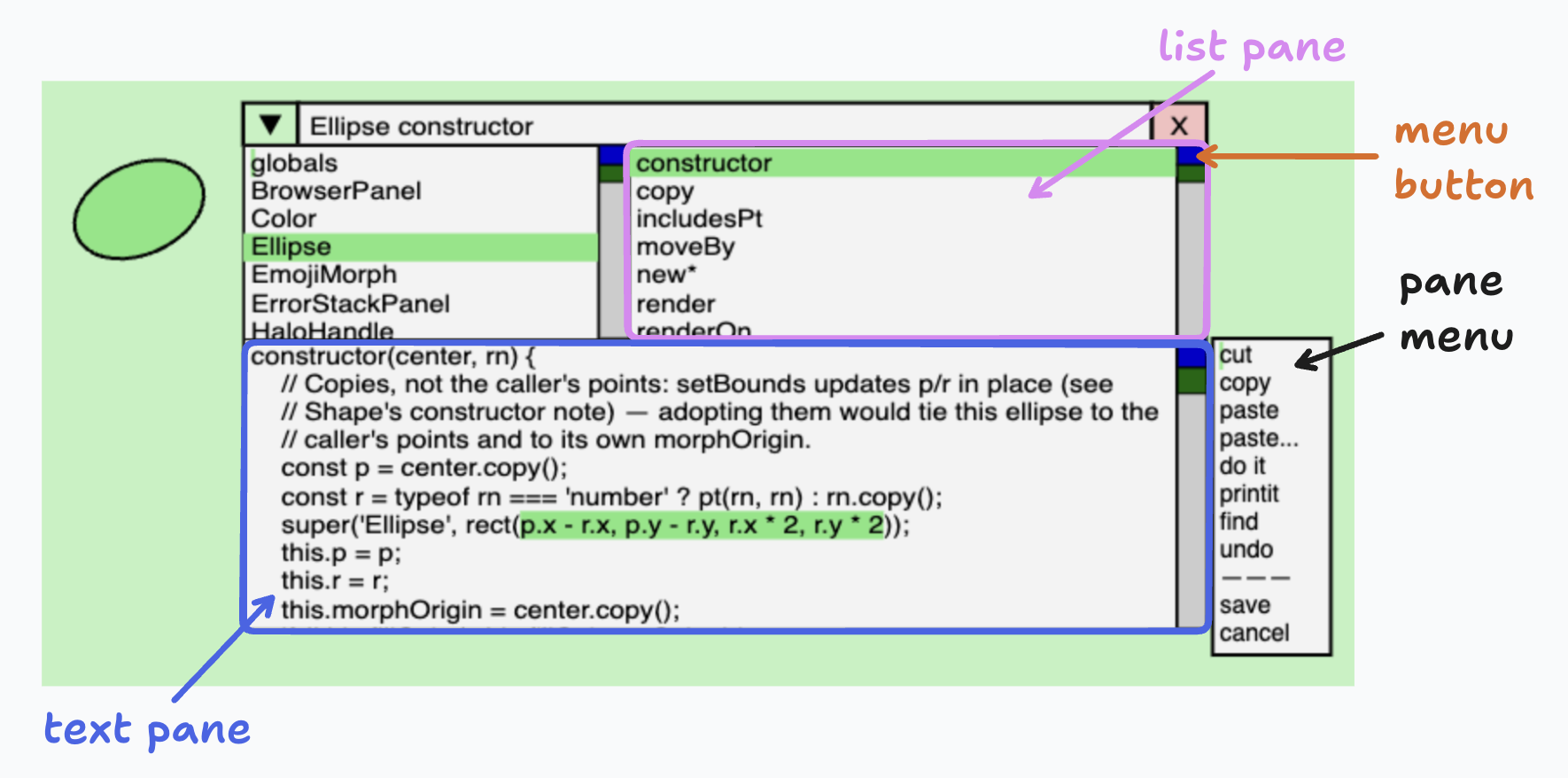
PanelMorphs are expected to house one or more ScrollPanes. The ScrollPane class provides for scrolling and clipping of text and lists. Scroll panes may offer a scroll bar to control scrolling of their content, and a menu button to provide access to particulars of the pane’s content including its selection if it has one.
Here a PanelMorph, two ListPanes and a TextPane comprise the workhorse system browser for the kernel’s codebase.
Programming Tools
System Browser
The system browser is the workhorse of code navigation and editing in the system, shown above to illustrate the structure of most paned windows. It can be opened from the world menu, or using the B handle of a halo in which case it will open to the class of the halo’s target object.
Search Results
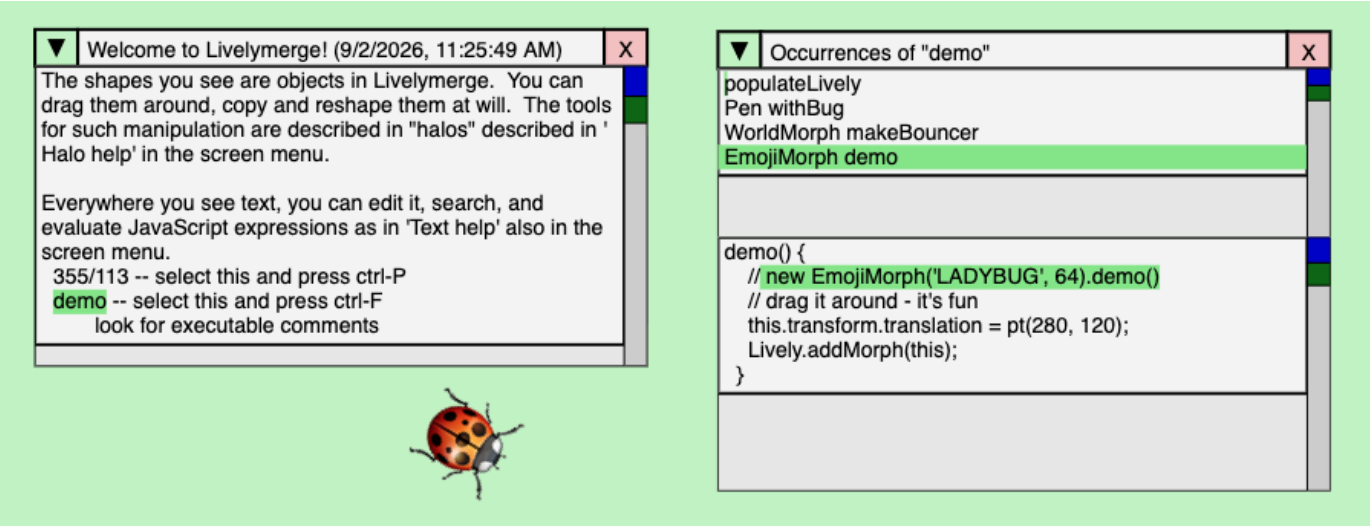
The search results panel presents the result of a find command in any browser or other piece of text. Whether you are new to the system or an old hand, the find command will be your most valuable tool. You need only double-click on a method name followed by ctrl-F to see a list of all senders and implementers of that method. When you select one of those methods, it will highlight the first occurrence, and subsequent occurrences can be scanned with ctrl-G.
Inspector
The inspector is valuable for examining Morphic structure and the dynamic state of each object. It can be opened by the expression something.inspect() or by using the I handle of an object’s halo.
The inspector lets you view the parts of any object. It also includes an evaluation pane where you can execute JavaScript expressions with this bound to the morph that’s being inspected. In the video above, this facility is being used to enable the curved property of a star-shaped polyline (see the section on Stepping, below).
Style Panel
Clicking the S in a morph’s halo will bring up a style panel, a rudimentary tool for controlling the morph’s fill color, border color, and border width. All the controls are live; the revert and save buttons give final control over the changes that you make.
Recent Changes
The world menu item “Recent Changes” will open a method list panel of recently added or changed methods. This is handy if you wonder when someone made a certain change, or what that method looked like before. By browsing to old versions of a method and using the editor’s save command, you can revert to any of those previous definitions.
Method Browser
A MethodBrowser is a full panel devoted to a single method. Use the spawn command in the system browser to work on several methods without needing full system browsers for each.
Other features from the world menu
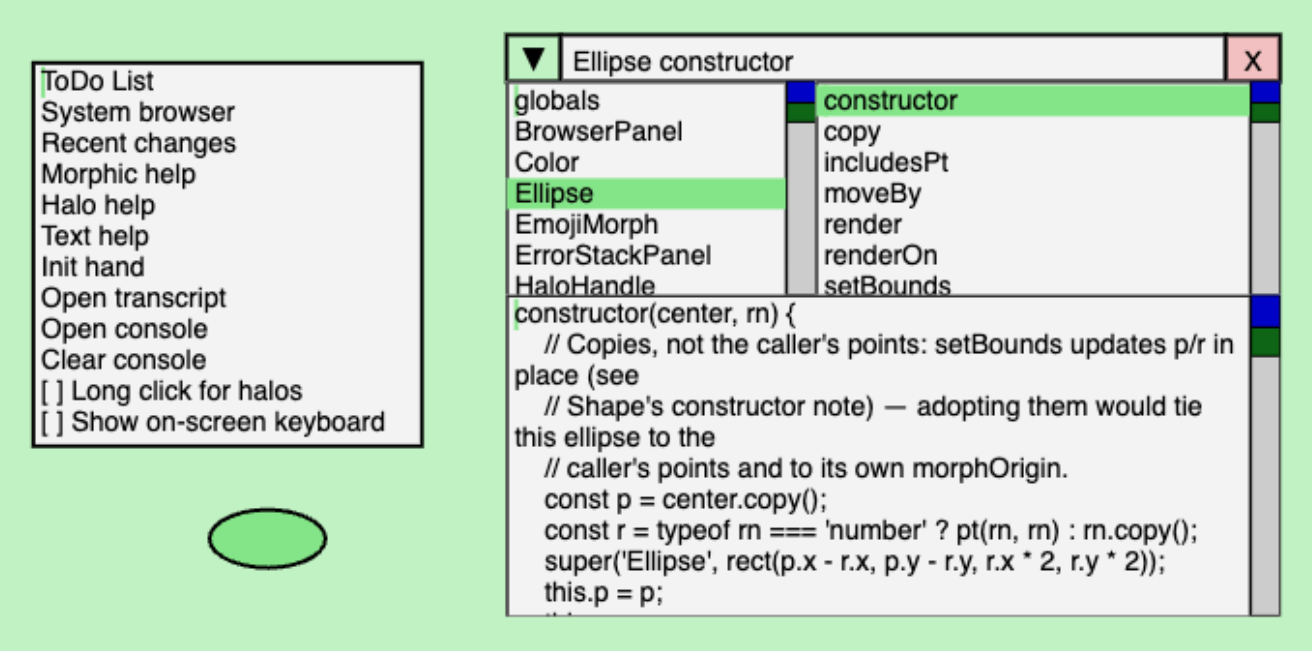
- ToDo List: Mostly a to-do list of features desired or planned.
- Open transcript: Opens a
Transcriptpanel, an append-only text pane in the Smalltalk tradition. - Open console: Opens the same kind of panel, but wired to the JavaScript console. Anything sent to
console.logappears here, along with warnings and errors. This is what lets you debug without leaving the system. - Clear console: Empties the console panel.
- Long click for halos: On platforms such as tablets and phones that do not offer a meta (cmd or ctrl) key for invoking halos with meta-click, this option allows a long click to invoke Morphic halos.
- On-screen keyboard: On platforms such as tablets and phones that do not offer a keyboard for typing, this option will cause an on-screen keyboard to appear whenever a text object has control.
Stepping
This Morphic system provides a stepping mechanism for various animated effects in the user interface and in applications built on it. The world morph supports this by maintaining a list of SteppingSpecs, where each spec identifies:
stepMorph: a morph to be steppednextStepTime: time to provide the next step of this specmethodName: the name of a method to carry out the stepargs: the arguments to be passed to the method
You can see an example of this in the video above. The expression this.startStepping(20, 'rotateBy', 0.05) creates a SteppingSpec that sends the star a rotateBy message with an argument of 0.05 radians every 20 milliseconds.
Note that, with the star’s transform selected, you see its value changing as the star spins. This nice behavior of the inspector is provided by a similar stepping method!
Hands
Users collaborating on the same Livelymerge document can see each other’s hands, each of which has a different color. If your hand is green, you will notice that when you pick up a morph, its drop shadow will have a green tint to it. I’ll see that too — it’s how I know that you have picked it up. Similarly, if you are editing text, you will notice that its “dirty border” is green. We are currently experimenting with these mechanisms that allow multiple users to see what each other is doing and avoid conflicts.
In the next note we’ll talk much more about hands.